



Contents
The Quick Fix
If you arrived here from our YouTube masterclass because your PC is lagging, stuttering, or taking forever to boot, you do not need to download sketchy third-party “PC Optimizer” software. You can strip away the digital sludge manually.
Open Command Prompt as Administrator (Search cmd in your Start menu, right-click, and select Run as Administrator).
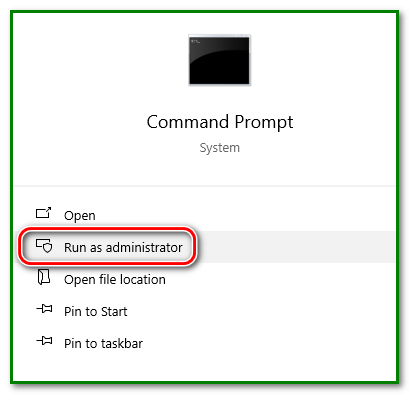
Run the following five commands one by one, pressing Enter after each:
1. Flush the DNS Cache: ipconfig /flushdns
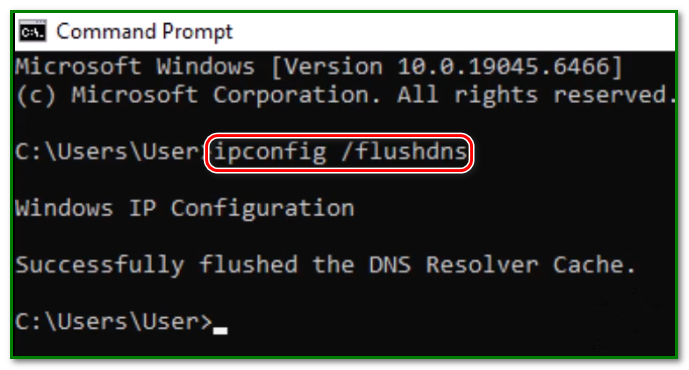
2. Repair Corrupted System Files: sfc /scannow (Wait for this scan to reach 100% before proceeding).
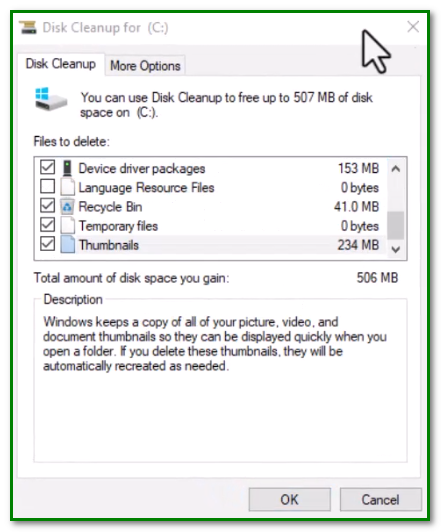
3. Launch the Disk Cleanup Tool: cleanmgr (This will open a pop-up window. Check the boxes for the junk you want to delete and click OK).
4. Disable Hibernation (Free Up Massive Space): powercfg /hibernate off
5. Unlock Ultimate Performance Mode: powercfg -duplicatescheme e9a42b02-d5df-448d-aa00-03f14749eb61
Next Step: Once you are back on your desktop, open your Control Panel, navigate to Power Options, click “Show additional plans,” and select the newly unlocked Ultimate Performance power plan.
Tech Made Stupidly Simple: How This Routine Works
Windows is a high-maintenance operating system. As you use your computer—browsing the web, installing game updates, creating documents—Windows constantly generates background data.
Over time, this data gets corrupted, fragmented, or simply abandoned, acting like digital sludge that bogs down your processor.
Executing this 5-step clean-up acts as a deep mechanical service for your PC. Here is exactly what you just did to your computer.
1. Taking Out the Trash (The Temp Files)
Whenever you install a program or unzip a file, Windows extracts a bunch of temporary data into a hidden folder called %temp%. It is supposed to delete this data when it finishes, but it rarely does. Over months and years, this folder can swell to hold dozens of gigabytes of useless junk. The del (delete) command paired with the /q /f /s switches forces Windows to quietly and aggressively empty this hidden trash can, instantly freeing up massive amounts of storage space on your primary drive.
2. Paving the Potholes (Chkdsk)
Your hard drive is like a massive highway system. Over time, physical wear and tear or sudden power outages create “potholes” (bad sectors) and broken road signs (file system errors). The chkdsk C: /f /r command scans the entire highway. The /f tells it to fix the broken signs, and the /r tells it to locate the physical potholes and recover any data trapped inside them, paving a smooth road for your data to travel on.
3. Getting a New Map (Flush DNS)
Every time you visit a website, Windows saves a tiny map of how to get there. This is fine at the beginning.
Over time, websites change servers. Those maps become outdated. It causes your web browser to spin endlessly as it tries to drive down a dead-end street.
Flushing the DNS throws away the broken maps, forcing Windows to ask for fresh, accurate directions to the internet.
4. The OS Librarian (SFC Scannow)
System File Checker (SFC) acts as an automated librarian for your core Windows code.
It scans every single critical operating system file, looks for anything that is corrupted or missing, and automatically replaces it with a pristine, factory-fresh copy.
This stops random background crashes that eat up your CPU power.
5. Removing the Restrictor Plate (Ultimate Performance)
By default, Windows aggressively throttles the amount of power your CPU and graphics card are allowed to use.
It does this to meet energy efficiency regulations and save battery life on laptops.
The powercfg command we provided uses a secret Microsoft developer key (e9a42b02-d5df...) to unlock a hidden power plan.
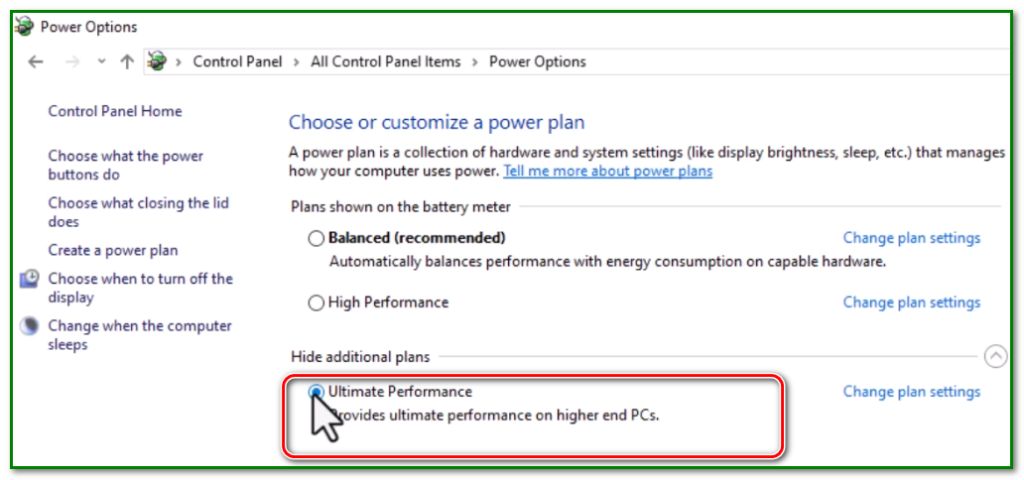
This plan tells Windows to stop throttling your hardware entirely, allowing your processor to pull maximum voltage and run at peak speeds constantly.
Symptoms & Use Cases: When to Run This Routine
You should run this 5-command masterclass once every three to six months as a routine maintenance schedule, or immediately if you experience any of the following symptoms:
1. The 10-Minute Boot-Up You press the power button, but you have time to go brew a pot of coffee before Windows actually reaches the desktop. Even when the desktop appears, clicking on Google Chrome takes another two minutes to respond. This is a classic symptom of a fragmented hard drive struggling with bad sectors and a bloated temporary cache.
2. Gaming Stutter and Low FPS You have a powerful graphics card, but your games are constantly stuttering or dropping frames during intense moments. Windows might be stepping in and throttling your CPU’s power delivery right when the game needs it most. Unlocking the Ultimate Performance plan prevents the OS from putting your hardware to sleep for even a microsecond.
3. The “Spinning Blue Circle” of Death You try to right-click a file on your desktop, and instead of a menu, your mouse turns into a spinning blue loading circle that lasts for thirty seconds. This indicates that Windows Explorer is struggling to read its own core system files. Running sfc /scannow repairs the interface components causing this delay.
4. Sluggish Web Browsing on Fast Wi-Fi Your phone loads websites instantly on your home Wi-Fi, but your PC takes forever to load a single YouTube video. Your bandwidth is fine, but your DNS cache is bloated and routing your traffic inefficiently.
Troubleshooting Common Command Prompt Errors
Because you are running multiple deep-system tools back-to-back, you might encounter a few warnings. Here is how to navigate them safely.
The Ultimate Performance Plan is Missing
You pasted the powercfg code, hit Enter, and went to the Control Panel, but you still only see “Balanced” and “Power Saver.”
The Fix: Microsoft hides the high-performance plans behind a drop-down menu so novice users don’t click them by accident.
In the Power Options menu, look for a small blue arrow or text that says Show additional plans. Click it, and the Ultimate Performance plan will drop down.
Should I Use Ultimate Performance on a Laptop?
If you are using a desktop PC, you should absolutely use the Ultimate Performance plan. Desktop PCs are plugged directly into the wall and have massive cooling fans. If you are using a thin-and-light laptop for school or work, do not use this plan. It will drain your battery in less than an hour and cause your laptop to run incredibly hot. Only enable this plan on a laptop if it is a dedicated gaming laptop that remains permanently plugged into the wall charger.
